Showing posts with label Analytics Tools. Show all posts

Thursday, 29 March 2018

How to Use Instagram Analytics to Grow Your Following

Did you know Instagram has more than 500 million active users and counting? Are you using Instagram to build a following for your personal brand, blog, or company? If so, you might be wondering how you can grow your follower count without engaging in odd tactics such as buying followers.
The best approach lies in Instagram’s native analytics platform, known as Instagram Insights. This platform is only accessible to users with an Instagram business account.
Here, you can find information about your followers, content, and Stories. By knowing how to interpret and implement this data, you can develop a quality growth strategy for your profile.
To find Instagram Insights, navigate to your Instagram profile on your smartphone – this feature is not available in the browser version of Instagram. In the top right-hand corner of your screen, you will see 4 vertical bars of varying sizes. Click this icon to access Instagram Insights.

Navigating Instagram Insights

Instagram Insights offers surface-level analytics about your followers, posts, Instagram stories, and promotions. This data is communicated through metrics including:
  • Impressions: The total number of times your posts have been seen
  • Reach: The number of unique accounts that have seen your posts
  • Engagement: The number of times a post was liked, saved, and/or commented on by users
Additional metrics include profile views, website clicks, email clicks, and directions clicks.
When you first open Instagram Insights, you will be presented with a 7-day view of your account. Here you will find the number of impressions, reach, profile views, website clicks, and email/call clicks for the most recent week.
Under this section is Followers. This is where you can find information about your followers, such as:
  • Gender
  • Age
  • Location
  • Activity (Categorized by hours and day of the week)
Directly below Followers, you will find a section full of your Posts. In this area, you can look at various metrics for your content, including reach, impressions, and engagement. You can also organize the posts by date range, metric, and type of content.
Following the Posts section is Instagram Stories. If you post regularly to Instagram Stories, you will find details about their engagement here. In addition to impressions and reach, this section provides insight into the following metrics:
  • Taps Forward: The number of taps to see the next photo or video
  • Taps Back: The number of taps to see the previous photo
  • Exits: The number of times someone exited your story
  • Replies: The number of replies (to your Inbox) a photo or video in a story received
  • Swipes Away: The number of swipes away from this photo or video to skip to the next account’s story
Lastly, Instagram Insights also shows information about any promotions you may have launched on the platform.
Play around with the various sections of Instagram Insights. Once you know how and where to find specific information within the tool, it’s time to utilize the data and grow your Instagram following.

4 Ways to Leverage Instagram Analytics and Grow       Your Following

After becoming comfortable with the built-in analytics platform, use the data to test out the following growth ideas.

1. Determine When Your Audience is Active

Instagram does not serve content to users in chronological order, meaning there is no true “best time to post.” However, you can discover when your audience is most active. You can find this information in the Followers section of Instagram Insights organized by day of the week and time of day.
Using this insight, plan to post your Instagram content within these time frames. Be sure to track the success of each post and time and adjust your schedule if necessary.

2. Appeal to Your Target Audience

When reviewing the Followers section in Instagram Insights, does the age, gender, and location information align with your target audience? If so, you’re doing something right! If not, you need to examine your posts and identify why you’re appealing to a different market than initially intended. Adjust your content accordingly to attract attention from the right audience.
On the other hand, if you’re unsure about who your audience is, Instagram Insights will tell you. With the audience demographic and geographic information in mind, you can craft relevant and timely content to appeal directly to this particular segment of your market.

3. Understand the Type of Content Your Audience Engages With

Users won’t want to follow your account if you don’t post content they are interested in. Using the Posts section, look at the engagement, impressions, and reach data for your Instagram Stories, photos, and videos. Out of the three content types, which tends to generate the best results? You can also organize your content by certain metrics and time periods. This is beneficial in determining what type of content your followers tend to interact with most.
For instance, use the tool to organize your posts by engagement over the past year. What do you notice? Did you do something similar in the copy? Did you use a specific hashtag that generated a lot of likes? Perhaps your image was stunning. Or, maybe your video asked viewers to comment below. Identify the commonalities between your top posts and implement them throughout your upcoming content.
By having a consistent and engaging presence on Instagram, you’ll attract more followers within your target market as time goes on.

4. Analyze Your Call-to-Action

Data from Instagram Insights is an excellent way to determine if your call-to-action (CTA) is working or failing. For instance, many accounts tell users to “click the link in their bio” for more information. In addition to the traffic acquisition data from Google Analytics for that particular webpage, Instagram Insights can tell you how many people clicked on the link in your bio over the last seven days. This information can help you test which calls to action work best to drive a specific action, such as website or call clicks on your profile.
Another commonly used call-to-action asks people to comment or tag a friend. By organizing your content by comments in Instagram Insights, you can see how many followers completed that action.
However, since you’re interested in growing your followers, asking people to follow your account (if they don’t already) is a beneficial call-to-action to use. Monitor your follower account to see if this CTA works well with your particular audience. If not, use the information from Instagram’s analytics to pivot accordingly!

How to Calculate Growth Rate

While Instagram provides basic metrics, such as follower count, it does not offer in-depth insight such as growth or engagement rate. You must calculate this information on your own. Alfred Lua of Buffer provides excellent insight on how to calculate growth rate and engagement rate using data from your Instagram Analytics account.
To find out how much follower growth your profile has experienced, perform the following equation:
[(Followers Then – Followers Now) / Followers Then] x 100
This results in the percentage change in growth over a particular period of time.
After adjusting your Instagram content strategy using the tips provided above, use the Growth Rate calculation to determine how well these tactics have performed in increasing your overall follower count.
How do you use Instagram Insights and metrics to grow your following? Share your thoughts and experiences with us by commenting below.


Sunday, 27 August 2017

The 15 best Google Chrome extensions for SEO

Google Chrome has taken a dominant position as the world’s favorite desktop browser, with almost 60% market share and rising.
Its central role among Google’s vast suite of digital software and hardware has driven this growth, but users also love how customizable the browser is.
It can be dauntingly customizable, in fact. With tens of thousands of extensions available, finding the few that will aid you on a daily basis is an all-consuming endeavor. In one store, you can find everything from Nicholas Page (an extension that turns any page Nicholas Cage-themed) to a variety of income tax calculators.
Somewhere in between those two extremes, there are hundreds of SEO-themed extensions, some much more useful than others.
There is a little bit of a learning curve to using some SEO Chrome extensions, but once they become habit, they will save plenty of time in the long run.
Therefore, within this list we have distilled this down to the 15 extensions that will simply make you more effective at the core areas of SEO.


Chrome extensions for a quick site review


SimilarWeb

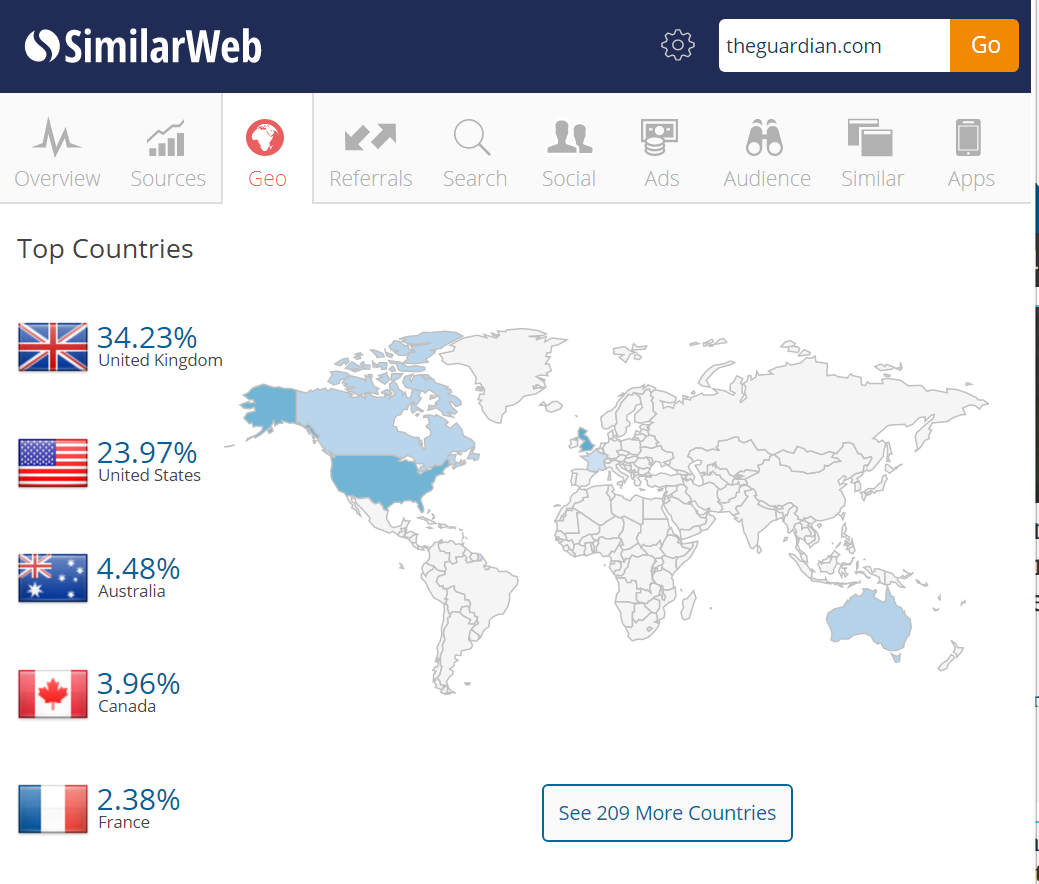
The SimilarWeb extension is a great place to start with a quick site analysis. It provides a broader view of a website beyond just SEO, taking into account all traffic sources. The extension does this by analyzing clickstream data from thousands of internet service providers, SimilarWeb’s own web crawlers, and their clients’ data.
As a result of these calculations, you can get reasonably reliable stats on a brand’s audience demographics, how much they spend on paid media, and which countries their traffic comes from.
All of these factors affect SEO, of course, so this provides invaluable insight when analyzing a brand’s digital presence. The Chrome extension is free, but a paid account does give access to a more complete data set.


MozBar

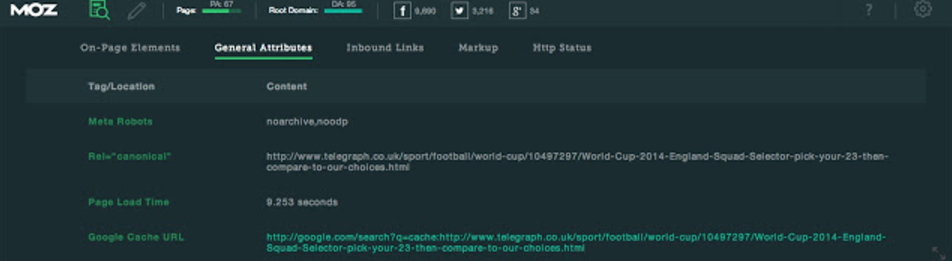
We couldn’t really have an SEO Chrome extensions list without including MozBar. As an all-in-one tool for a quick SEO site overview, MozBar is still the best on the market. Once a user is logged into their Moz community account (it’s free to sign up, for those that haven’t opened an account), MozBar springs into action on websites and search engine results pages.
It contains an extensive list of analyses, covering technical SEO, on-site content, social media engagement, and backlinks. MozBar can cause sites to load a little more slowly, however, so it’s best to enable it only when you need to assess a website’s SEO metrics.


Impactana

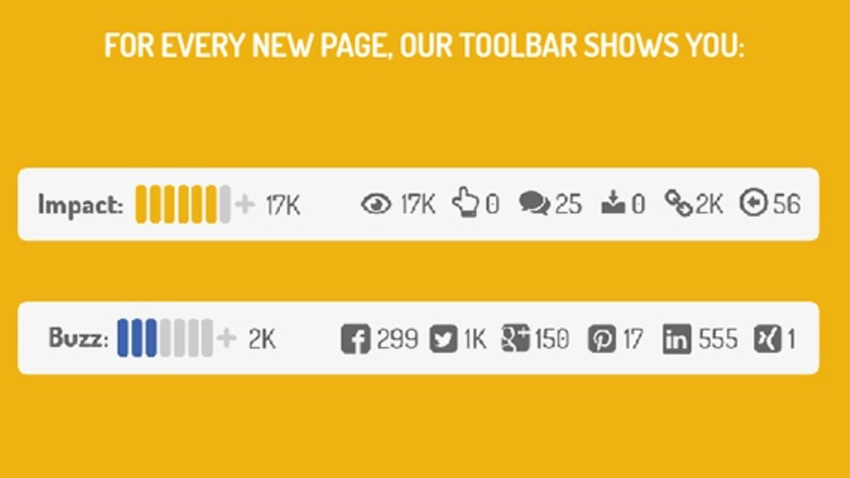
Impactana is a content marketing toolbar that offers the social media analysis you would expect, displaying share counts for each page on Twitter, Facebook, Linkedin, et al.
Where it stands apart from the competition is in its use of proprietary metrics to calculate the ‘Impact’ and ‘Buzz’ of each piece of content. These metrics incorporate user engagement signals to assess not just whether content has been shared, but whether people have interacted with it too. As such, it makes for a great starting point when analyzing the effectiveness of a competitor’s content marketing campaigns.


Chrome extensions for technical SEO


User agent switcher

In this mobile-first age, we need to make sure we are optimizing for a variety of screen sizes and device types. That’s pretty hard to do with just a desktop to hand, unless you have a user agent switcher downloaded.
This extension will give you the option to view web pages as they would appear on a wide variety of devices and operating systems. It’s an essential extension for developers, but it’s very useful for anyone conducting SEO analysis too.


Scraper

Quite often, we need to pull elements from a range of individual pages or websites for large-scale analysis. There are a few different ways of doing this, such as using IMPORTXML code to pull structured data from websites into Google Sheets or Excel.
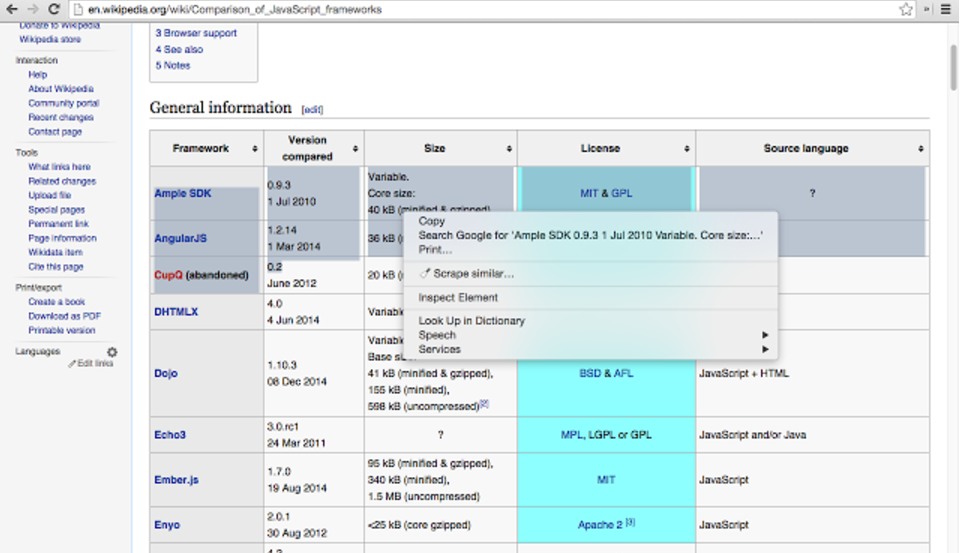
The Scraper Chrome extension speeds up this process, using the XPath query language to export HTML data elements from a page, along with similar data from across the website.
It take a little getting used to, but there is a handy step-by-step guide here. Once you get accustomed to how Scraper functions, it saves a lot of time during any technical SEO audits.


META SEO Inspector

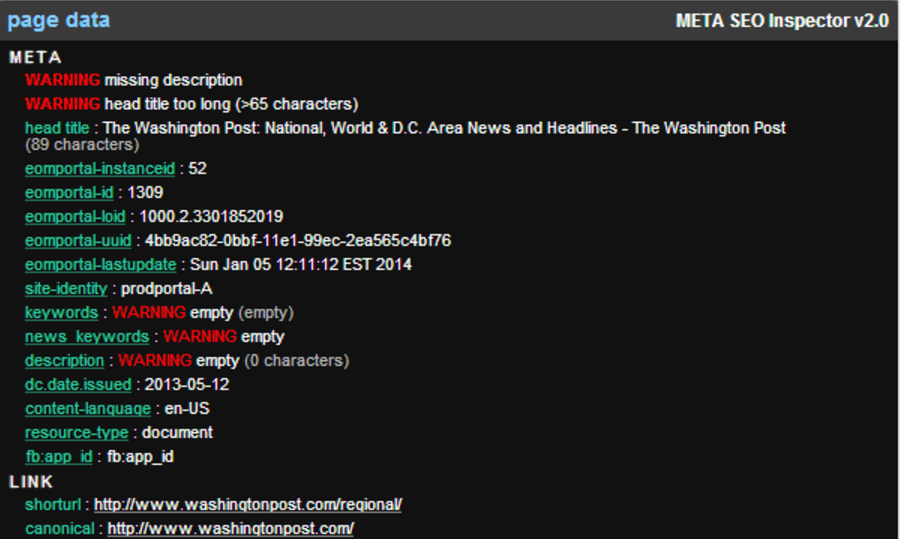
If we want to understand how a search engine crawls and indexes our websites (and presumably, we all do), we need to get to grips with metadata. META SEO Inspector goes beyond the narrow, SEO-focused definition of metadata as the ‘meta’ tags defined within the HTML source code.
The extension also facilitates analysis of XFN tags, canonical tags, and various microformats. It is also updated quite regularly to stay abreast of any amendments or additions to Google’s best practice guidelines.


Tag Assistant

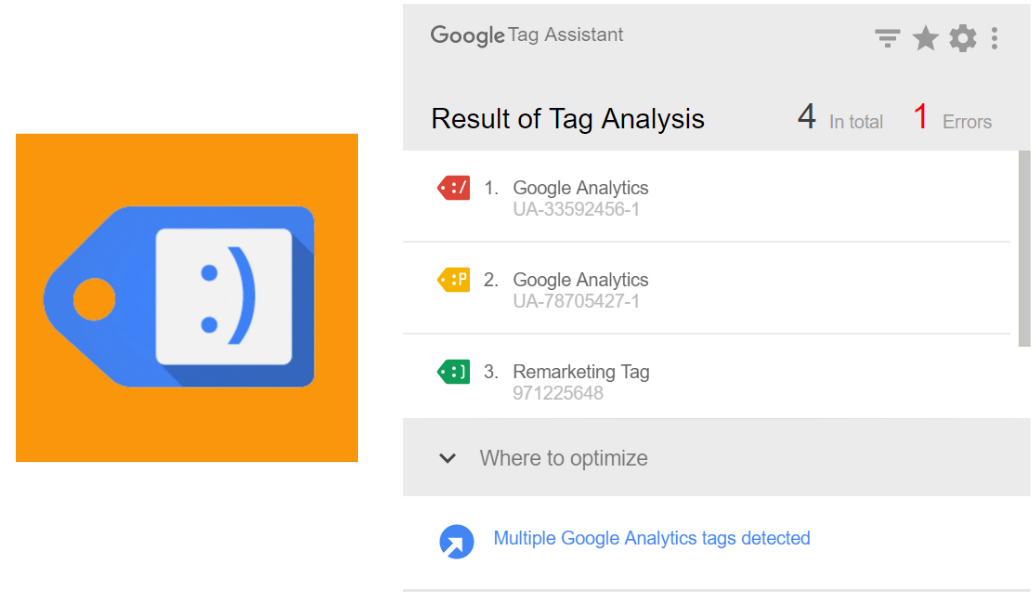
This Chrome extension from Google isn’t the most glamorous tool on our list, but it is one of the most useful. Tag Assistant acts as a trouble-shooter, verifying the installation of Google tags such as those used for Google Analytics and Remarketing.
The ability to record sessions and analyze the implementation of tracking tags through user journeys is perhaps Tag Assistant’s main USP. It gives the extension a lot of potential for frequent use, beyond the occasional spot checks to verify if tags are implemented correctly or not.

Page Load Time

As we discussed in a recent article, speed is of the utmost importance as Google continues to prepare its mobile-first index.
Page Load Time helps SEO keep an eye on this essential ranking factor, without being obtrusive in the way that other Chrome Extensions can be. Every time a page loads, it highlights the amount of time it took in seconds.
Users can then click on the extension’s icon to see a breakdown of the elements required to load the page’s content. For quick insights into page speed, it makes for the perfect starting point.


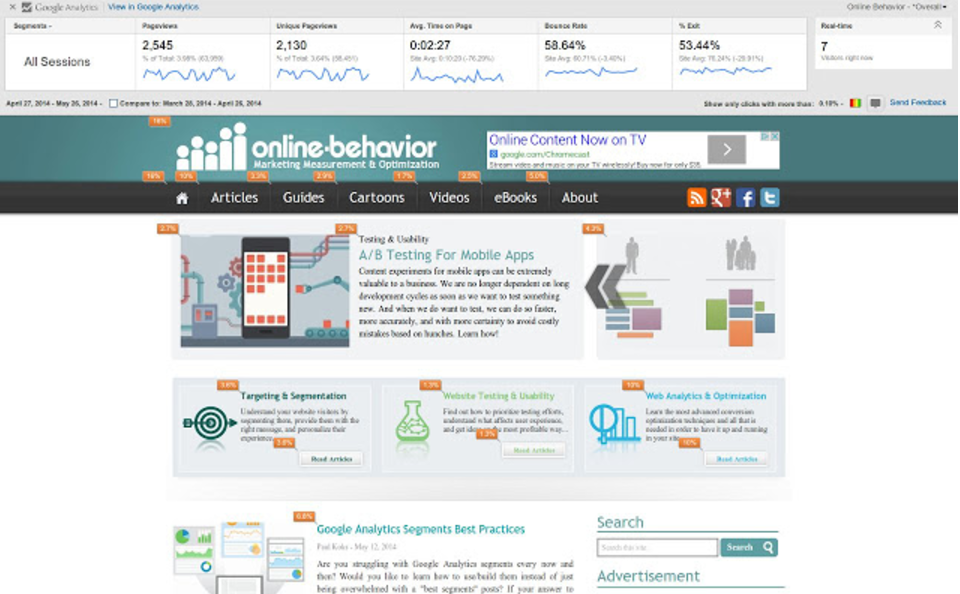
The metrics available in this snapshot include bounce rate, unique page views, and average time on page. With the increasing prominence of user engagement factors in a RankBrain-driven Google search ecosystem, this extension is a very handy way to keep an eye on how each individual page is performing without visiting the Google Analytics platform.


Keywords Everywhere

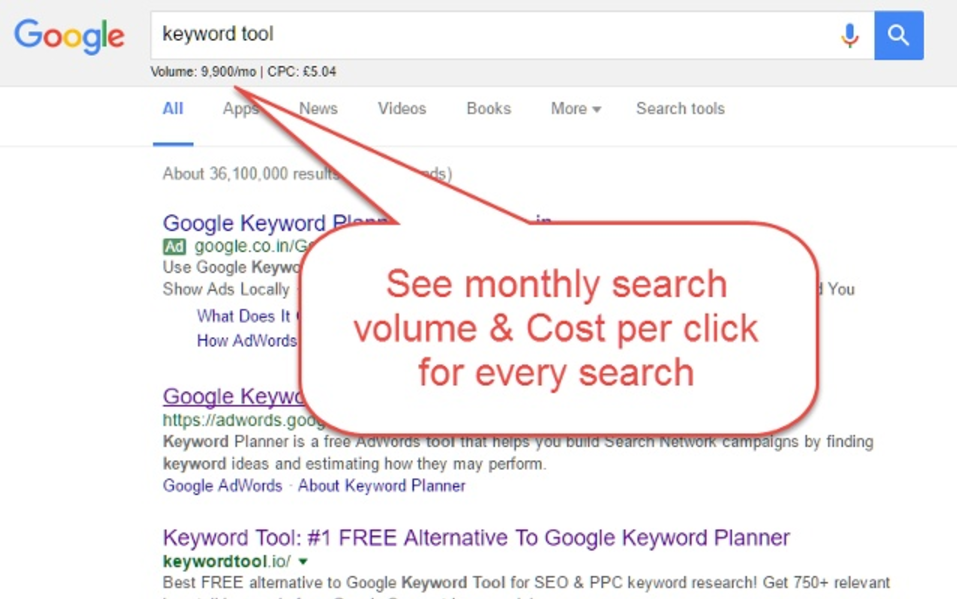
Some things never change in SEO. We still need to understand which search queries our target audience uses, but gaining access to accurate search volumes has grown increasingly difficult. The Keywords Everywhere extension doesn’t quite solve this riddle entirely, but it goes some way towards providing a bit of clarity.
By pulling data from Google Keyword Planner, Google Search Console, and UberSuggest, the extension displays approximate search volumes within results pages. From there, SEO professionals can start to consider for which queries they want to optimize their content.
This extension shouldn’t be used in isolation to conduct larger keyword research tasks, but it has enough handy features to make it a worthwhile addition.


Spark Content Optimizer

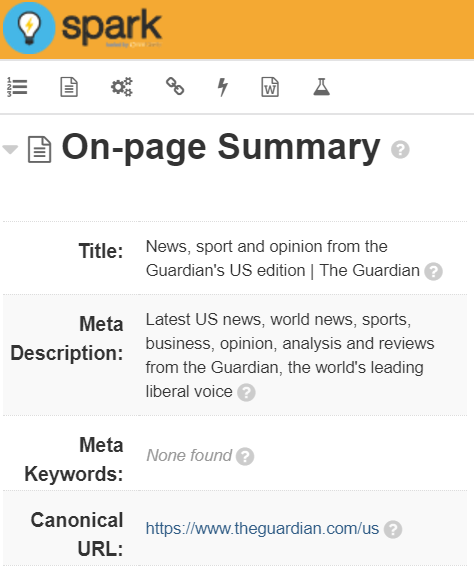
This extension is ideal for getting different teams to incorporate SEO into their daily routines. Everyone from copywriters to developers can benefit from Spark, a Chrome add-on that scans content to assess how comprehensively it covers a topic and how well it makes use of popular search queries.
This can be a tricky area of SEO, as we want to provide a search engine with clear signals about our content, but also need to tread carefully to avoid stuffing in keywords to the detriment of content quality. Spark provides some hints without being overbearing, making it a worthy addition to any SEO armory.


Chrome extensions for backlink analysis

Link Research Tools

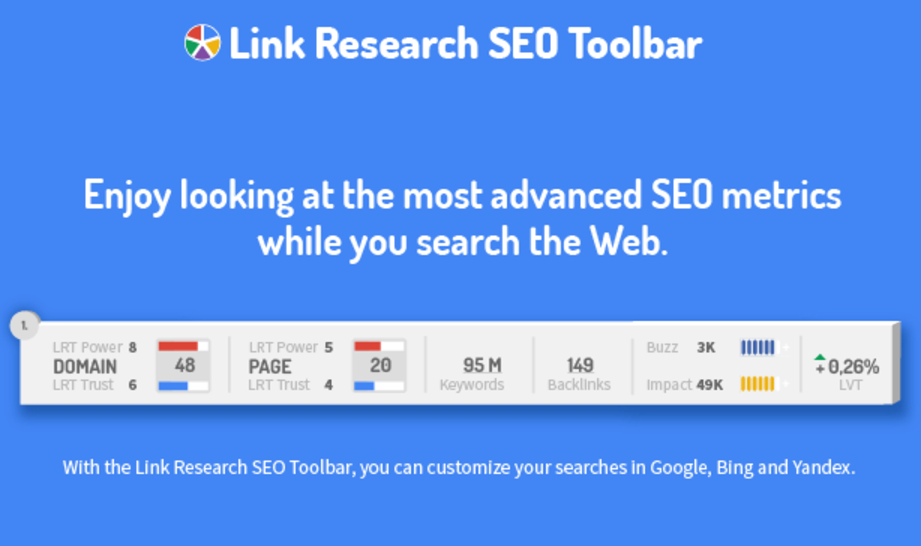
This toolbar from Link Research Tools overlays backlink data as users search and browse. It’s great for getting a quick look at a site’s backlink profile, although it does require a paid account to gain access to some of LRT’s more advanced features.
Much is the same fashion as MozBar, the LRT toolbar overlays backlink data onto search engine results pages too. This is very beneficial for taking a backlink-based look at why particular sites perform well for a keyword.


LinkMiner

LinkMiner is probably the best Chrome extension for identifying broken links. Once activated, it will highlight the number of outbound links on any page, highlighting in green those that are active, and in red those that are broken. It makes for an easy way to share issues with the development team and get links fixed.
Through its integration with a range of indices (including Ahrefs, Majestic, and Moz), it also creates a simple overview of the ratio of inbound to outbound links on each page.


Majestic Backlink Analyzer

Majestic remains one of the heavyweight SEO software packages, and this Chrome extension provides much of its functionality without having to visit a separate URL.
The Backlink Analyzer provides insight into the quantity and quality of backlinks pointing to any page, along with their topical relevance to the source material. Majestic’s index is larger than Moz’s, so this makes it a more robust reference point when conducting backlink analysis. You will require a paid Majestic subscription to avail of these benefits, however.


Buzzmarker

Engaging with influencers can be a fantastic way to gain relevant, authoritative backlinks. Nonetheless, as anyone who has worked in this field will know, the pursuit of those all-important backlinks can bring with it a lot of time-intensive, manual work.
This extension from outreach platform BuzzStream aims to simplify the outreach process. It helps with prospecting, by highlighting key social media metrics on a potential partner’s website. It also makes it easier to bookmark influencers and add them into the main BuzzStream platform.

Once more, this will require a paid BuzzStream account, but if you already have an account, then downloading this extension should be a no-brainer.

Wednesday, 23 August 2017

30+ Must Have Tools For Any Digital Marketer


Online marketing involves knowing a good amount about a whole lot of things; it’s sort of a jack-of-all-trades type of business. It requires the marketer or business owner to have a whole toolbox full of handy things to help them promote their content, improve website traffic, increase conversions, and more.
To help digital marketers save time and fill their toolbox with everything they need, we’ve rounded up thirty must-have online marketing tools for small and big businesses alike. This list includes links to tools from important aspects of digital marketing, such as SEO, social media marketing, content marketing, and analytics. Some of the tools are complex and involved, some are pretty basic. Some of the tools are free, some are not, and some are a bit of both.
Whichever aspect of digital marketing you need the most assistance with, check out the list and you’re bound to find the tool you’ve been missing.

SEO Tools

 1. Google Suggest

Cost: FREE
Google Suggest is an absolute must-have online marketing tool when it comes to finding keywords or content topic ideas. These suggestions can vary by search history, region, and language, but they all come from how people actually use the search engine. So, rather than offering suggestions worded in a way that is best for robots, they word them in a way that is best for people actually conducting the searches.
For example, type in the phrase “pet food coupons” and Google suggests:
1.   Pet food coupons online
2.   Pet food coupons printable
3.   Pet food coupons 2016
4.   Pet food coupons Canada
Try it with just “pet food coupon” and Google offers:
1.  Pet food coupon
2.  Pet food coupon deals
3.  Pet food coupon code
4.  Pet food coupons printable
These are all genuine searches conducted by other people, ranked by popularity. If there are lots of people doing searches for “pet food coupons” and then go type “pet food coupons printable”, that can help make “pet food coupons printable” appears as an autocomplete suggestion.

2. Anchor Text Over Optimization Tool

Cost: FREE
This online marketing tool functions exactly like it sounds, and is a must-have if you’re worried about Google penalties. The Anchor Text Over Optimization Tool allows the user to search for and identify any over-optimized anchor text links on external sites. This is good, because these types of links tend to look unnatural to Google and can end up getting flagged. The tool also lets the user send in a change request directly to the site webmasters.

3. Domain Hunter Plus

Cost: FREE


The Domain Hunter Plus is a free Chrome plugin that lets the user scan the page for any dead links and available domains. It can crawl hundreds of links on just one page, and provides error status codes to make your diagnostic process easier, and even lets the user export results in .csv format.

4. Ubersuggest

Cost: FREE


Ubersuggest is a super handy tool that lets you quickly find a whole batch of new keywords you wouldn’t normally find when using the common Google Keyword Planner (which is still a great tool!). They also have a free KeywordEverywhere extension for both Chrome and Firefox.

5. KeywordTool.io

Cost: Basic is FREE, but the Pro version has several plans, ranging from $48/month to $88/month.
KeywordTool.io is a free online marketing tool lets you get up to 750+ long-tail keyword suggestions for each search term you enter. They’re based on Google searches and the language you select. This tool is a great way to increase your content marketing, especially if you’re trying to drive more people to your website. By using this tool, you get insight into what they are searching for on Google and what they are looking to buy. You can create product offers or content that directly reflects these trends (using these keywords!), which would draw more people to your website.

6. Website Grader

Cost: FREE
Website Grader is a free online marketing tool that scans and grades your site, and then sends the results to you in an email. It evaluates your site based on key metrics like performance, SEO, security, and mobile optimization. If you’re trying to improve your site, boost your SEO, and increase your website traffic, this is a must-use tool.

7. Website SEO Score Checker

Cost: FREE
Its name may be long, but the Website SEO Score Checker tool from Small SEO Tools is easy to use. Just enter in your domain or a website’s URL, check the box to let them know you’re a real person, and then click on “Check SEO” to get a full report. If you’re trying to figure out what you need to improve in order to grow your online presence, this online marketing tool is a must-have.

8. Keyword Density Analyzer

Cost: FREE
The Keyword Density Analyzer from SEOBook lets you find the most commonly used keywords and phrases on any given page. If you’re trying to include enough keywords to boost your content’s SEO, but don’t want to overdo it, this tool is a must-have. It’s also great for learning from your competitor’s, and getting an idea of what keywords they’re ranking for.

9. SimilarWeb

Cost: Trial is FREE, plans are not.
SimilarWeb lets you compare two websites side-by-side. This is great for gaining insight about competitors, and figuring out how you can step up your SEO game.

10. Browseo

Cost: FREE
Browseo lets you see your website in the same way a search engine would. It’s helpful when you want to see the hierarchy you’ve assigned to certain elements of your site, even if you weren’t aware of it. You can also get insight into your website and that of your competitors.

Social Media Tools

11. Hootsuite

Cost: FREE for limited use, but they have plans that start at $9.99/month.


Hootsuite is one of the most popular and widely used online marketing tools for social media management. It has virtually every function you could possibly need, all presented within an easy-to-use format.

12. TweetDeck

Cost: FREE
If you’re going to focus your social media marketing efforts on Twitter, TweetDeck is a definite must-have tool to store in your proverbial toolbox. It makes it easy to see everything at once, manage multiple accounts at once, follow certain tags, check your notifications, and post new Tweets.

13. Buffer

Cost: Limited use is FREE, but plans start at $10/month and go up to $399/month
Buffer makes it easy to share any article/post/webpage you’re currently reading. You can also schedule your own content to be shared across your connected social media accounts.

14. Paper.li

Cost: Basic plan is FREE
Paper.li lets you share content from your own site, or that of others within your industry, and then publishes it in the format of an online newspaper. This is a great way to get your content seen by a new audience, as well as get it in front of others within your target audience.

15. Bitly

Cost: FREE
Honestly, what would a social media tools section be without Bitly? This link shortening tool is incredible useful for posting updates on Twitter, and saves on character space. It also just makes your update look less cluttered!

Content Marketing Tools

16. Prezi

Cost: Plans start at $4.99/month
Prezi lets you create a slideshow presentation that isn’t yawn-inducing. It’s easy to use, and has plenty of templates to choose from. It makes it easy to share information in a visual way, rather than just relying on written content.

17. Blog Topic Generator

Cost: FREE
This content marketing tool does just what it says it will do – it generates topics when you’re stuck in a blog post rut. The Blog Topic Generator is easy to use, and has some great topic ideas.

18. CoSchedule

Cost: Plans start at $60/month
CoSchedule is a must-have online marketing tool that makes it easy to schedule your content across various social media platforms. It also has a handy Headline Analyzer to help you measure how effective your headline is.

19. SlideShare

Cost: FREE
SlideShare functions a lot like a social network for presentations. It’s a great way to put together content for webinars, lectures, and conferences. You create the presentation, and then share it with your audience.

20. Social Studio FX

Cost: $49 One Time ($99 Optional Template Upgrade Available)


Social Studio FX is a simple yet powerful way to make your graphics for your social media and advertising. Easy to use point and click interface, combined with a ton of images and templates, it’s a powerful and highly recommended. Also a best seller of Snaptactix!

21. PicMonkey

Cost: Basic plan is FREE
PicMonkey is a great tool for creating or editing images and website/blog graphics. It’s easy to use, and they have different themes and special fonts and graphics available for different occasions, holidays, and needs.

22. Quora

Cost: FREE
It may not be the first site that comes to mind when talking about online marketing tools, but Quora can be a gold mine for content marketing. You can answer questions others may have, and then link to relevant pages on your site. You can showcase your industry authority by offering expert advice or solutions, and you can drive traffic to your site with blog posts and links.

23. Google Alerts

Cost: FREE
As simple as it is, Google Alerts is one of the best online marketing tools to have when it comes to your content marketing. It lets you keep up on the latest trends and happenings within your industry, providing you with an immediate look into what’s going on. Your brand will be up-to-date on all of the latest information, as it’s published, and able to create or share relevant content.

24. Evernote

Cost: Basic plan is FREE, other plans are $34.99/yr and $69.99/yr
If you tend to have multiple folders with bits of research or notes scattered about your computer, Evernote is a must-have online marketing tool. This lets you save practically anything you find online into a completely personalized folder arrangement that syncs across all of your devices.

25. Twitter Chats

Cost: FREE
Now, Twitter may be a social media site and tool, but the Twitter chats serve as a great resource for your content marketing. You get into discussions with other industry experts and brands, get a feel for what’s trending right now, and find out what the hot issues are. It also helps you see what your prospects are currently interested in, what they’re struggling with, and what solutions they are looking for. It gives you a focus for your content, and provides an excellent way of demonstrating your brand’s value.

26. Pixel Studio FX

Cost: $67 (one time only!)


Pixel Studio FX is a user-friendly web app makes it easy to create eCovers for your online marketing business. It also includes an Enterprise/Commercial license for free, so you can sell these designs as your own and still keep 100% of the profits.

Analytics Tools

27. Google Analytics

Cost: FREE, but premium plans are available
The biggest name in analytics, Google Analytics has everything you could possibly need to track the effectiveness of your website content, campaigns, and other types of marketing collateral. You can see how many people access your site, where they come from, how long they spend on each page, how many pages into your site they venture, and more. It’s a complex online marketing tool, but designed in a way that makes it extremely user-friendly.

28. ClickTale

Cost: Free demo, priced plans
ClickTale is a handy online marketing tool that provides video recordings of real user sessions. This lets you go through and see what people clicked on, what they didn’t, and what they interacted with the most.

29. SubjectLine

Cost: FREE


If your subject line isn’t compelling enough, your subscribers or other recipients probably won’t bother to open them. So, how do you know whether or not your subject line is enticing? SubjectLine is an easy-to-use online marketing tool that will analyze your subject line and tell you where to improve.

30. Formisimo

Cost: FREE trial (7 days), plans range from $50/mo to $180/mo or POA/mo
Formisimo picks up where other analytics tools leave off. They can tell you which pages were visited, where your visitors came from, and what they did on your site. What they can’t tell you is why your visitors left without converting to customers or subscribers. This online marketing tool can tell you exactly that.

31. Piwik

Cost: FREE, but you must download it and host it on your own server
Piwik offers a lot of the same features other analytics tools do, including visitor maps, keyword search, and session tracking. However, this tool takes things one step further by offering a mobile app and unlimited data storage. The setup is pretty complicated, and the program is a bit involved, but the dashboard can be customized to fit your preferences and needs.

32. ClickPerfect

Cost: FREE for 30 days, $19/month after


ClickPerfect is custom software was built from the ground up, designed as an easy-to-use click tracking click targeting platform. This tool lets you mask/cloak links and track their clicks in real time. Tracking every click on your site can help you maximize your audience reach and revenue, making this tool an absolute must-have.
Choose an online marketing tool from each section to try out.
Oh and don’t forget to like this article and share with your fellow digital marketer.
If you found a new tool from our TOP 30 list to help in your marketing efforts, I’m sure they will too!
Make sure you let us know which tools you use and which ones you plan to get in the comment section BELOW!

Source

Friday, 28 July 2017

23 Cool Tools for Social Media Marketers


Looking for some new apps and tools to add to your social media marketing toolbox?
Wondering which graphics, analytics, and productivity tools can help streamline your workflow?
In this article, you’ll discover 23 tools and apps shared in the Social Media Marketing podcast’s Discovery of the Week.
23 Cool Tools for Social Media Marketers by Mike Stelzner on Social Media Examiner.


#1: Taco

The Taco app lets you combine tasks and tickets from different places, such as Trello, Evernote, and email, into one master to-do list. It’s a major timesaver.
Connect all of your services to the Taco app.
Organize your to-do lists from multiple places with the Taco app.
Sign up for free at TacoApp.com and connect it to all of your other services. Taco will connect to more than 35 services such as Asana, Basecamp, Evernote, Highrise, Slack, Wunderlist, Gmail, and even an RSS feed.
Taco is a free desktop app and has a Chrome extension. Plus, you can use it on mobile if you bookmark it on your mobile browser.


#2: Grammarly

Grammarly is a great way to spell-check your social media posts. Even when you post something on social that you think is perfect, people sometimes comment with corrections. You either misspelled something or used the wrong spelling of a word. Grammarly fixes that.
Grammarly is like spell-check for social media and other online 
posts.

 Use Grammarly to grammar and spell-check all of your social media and blog posts.
Grammarly is software, as well as a browser extension. Download the native app for free on your Mac or Windows computer. Then drag and drop documents and it will do a spelling and grammar check. There are also browser extensions for Safari, Chrome, and Firefox, which do a live check of whatever you type on the web.
The program analyzes your writing for improper word usage, too. It highlights any errors, just like standard spell-check. Once you see a problem, you can fix it.
Grammarly’s free program has a lot of functionality, but there are paid upgrade options available, which do even more intense checks and suggestions.


#3: Typeform

To create cool forms on the web, try Typeform. You can create a questionnaire on Google forms or SurveyMonkey, and Typeform similar, but it’s much more visually appealing.
Create user-friendly online forms with Typeform.
Typeform helps you create cool, user-friendly forms on the web.
Go to Typeform.com and get started for free. Typeforms can include information, payments, and registration. It’s optimized for mobile. You can even create a form on a mobile device and see how it looks as you create it.
It’s fun to take their surveys because it’s easy, looks cool, and has an awesome user interface.
Typeform is web-based and works across any platform. The basic plan includes unlimited forms and responses. Upgrade to the pro and the pro plus versions for a monthly charge, which give you a custom thank-you screen and priority support. Plus, you can remove the Typeform branding.


#4: Twitter Analytics From AgoraPulse

While Twitter Analytics gives you information about your tweets and the audience for your Twitter account, Twitter Analytics from AgoraPulse is a free tool that allows you to compare your Twitter account to others.
For example, say you want to compare the number of followers you have, the quality of your interaction, or the amount of Twitter activity with the accounts of your competitors or peers.
Twitter Analytics from AgoraPulse enables you to compare analytics from other accounts.
Compare your Twitter analytics to other accounts with AgoraPulse.
Go to analytics.agorapulse.com, authorize it to access your Twitter account, and click through the confirmation email. Then add the other Twitter accounts that you want to compare. You can see over the last 30 days how much engagement other accounts are getting, as well as interactions or conversations per tweet. There’s a really great Twitter-specific dashboard for all of that high-level data.
If you’re doing a weekly or monthly report to show how your Twitter account is doing compared to others, or even if you’re in an organization that has multiple Twitter accounts, list them off using this tool and you have quick, easy reporting.


#5: Grytics

It can be a hassle to identify the most engaged people in the Facebook group you run for your business. Grytics is a great tool to analyze your Facebook groups.
Grytics gives you statistics based on your most active members, engagement, and activity scores. Plus, you can see which were the top posts in your group.
Get Facebook group activity statistics using Grytics.
Analyze your Facebook group activity with Grytics.
When you open a post from your Facebook page’s insights, it tells you how many people liked it and breaks down reactions and clicks. Grytics gives you that kind of data on each Facebook group post and then carries that over into the group members. Possible applications could be rewarding engaged group members and giving them a public shout-out.
It’s a desktop tool you can get by going to Grytics.com. There’s a free version that provides a bunch of basic data. Then it moves up to premium, pro, and enterprise versions, and each is only a small step up – $12, $25, or $55 per month – based on features.


#6: Patch

Patch, a smart portrait editing app for iOS, automatically edits your images and simulates a blurred background effect that lets the subject of your photo stand out.
Use the Patch app for smart portrait editing on your iOS devices.
The Patch app blurs the background on your mobile photos, 
which improves subject focus.
Open up an image inside the app, turn up the intensity, and in 10 seconds the image is processed from a cell phone selfie into something worthy of framing.
You can use images from the built-in camera on your phone, uploaded images, or imported photos from your camera roll. So if you’re at a conference and take a bunch of awesome selfies, you can process them afterward!
Patch is free in the App Store but offers watermark removal for a $1.99 fee.


#7: Slim Lists for Trello

Slim Lists for Trello is a Chrome extension that’s a cool hack for Trello users.
If you’re not familiar with Trello, it’s a project management tool that’s web-based (and free). The browser extension works in Chrome on both PC and Mac.
See more of your tasks at a glance with Slim Lists for Trello.
Slim Lists for Trello is a cool Chrome extension that allows you to 
fit more on your screen.
Slim Lists for Trello takes your existing Trello boards and reduces the width. Trello has different cards that are ranked and sorted into lists. This will give you all (or at least most) of the information, reduced up to about 50%. Doing this allows you to fit more on your screen.
If you’re not already on Trello, check it out. It’s an amazing tool. If you work collaboratively with many people, Trello is a lifesaver. It also has an app that does real-time communication. You have all of the information and all of the right people with access to it in a nice, neat, organized location.
Go to the Google Chrome store to get Slim Lists for Trello.


#8: Ripl

Ripl, a mobile app that creates images, video, captions, and moving text, is different from other apps in that it lets you easily do a lot of motion graphics.
With Ripl, you can even have text that zooms toward you or on a crawl. Check out the Social Media Examiner Instagram account for examples.


Ripl is free but you can get a pro account version for $9.99 per month, which allows you to remove the watermark. You can also add your own watermark and branding, as well as have access to other pre-populated design templates.
It’s a very cool effect. Ripl is available on iOS and Android.


#9: Senders

Senders is like having caller ID for email. Senders pulls information based on a sender’s email account and lets you know all about him or her.
Senders will give you the person’s name, title, and bio, along with links to his or her Twitter, LinkedIn, and Facebook accounts. It shares last tweets, their Twitter follower count, and links to the Google search for that person.
Senders compiles information about the people who email you.
Learn about people who email you with Senders.
You can even go into Senders with your own account and edit your information.
Senders works for most email accounts. All you need to do is give Senders permission to see your account and they don’t store, share, or read any of the content of the emails. Senders simply scans and searches the web for people’s contact info.
For now, Senders is free.


#10: OneTab

OneTab is a cool app that helps you manage the overload of tabs on your browser. For instance, you have a bunch of tabs open and you realize your computer is bogging down; however, you don’t want to lose all of those tabs. That’s where OneTab comes in.
Install the Google Chrome or Firefox extension and when you click it, it sends all of your tabs into one tab as a list of clickable links.
Merge your tabs with one click using OneTab.
OneTab allows you to merge and save all open tabs to look at later.
Let’s say you have six or seven news sites that you check every morning. Instead of leaving them open in your browser all day long and slowing your computer, you can create a OneTab list and they open in one shot.
Or if you’re checking multiple tabs for a project and then get interrupted, you can merge those tabs, put them away, and go back and look at them later. You can focus on what needs to be done in the moment and reload those tabs at any time.


#11: G-Lock Apps

If you send regular emails as part of a newsletter or promotion, you may have seen a reduction in your open rates lately. Maybe your emails get stuck in the Promotions tab or the spam folder.
G-Lock Apps offers a cool solution. Add a simple piece of code to the end of your email and G-Lock sends your email through a filtering system to tell you whether it will go to the Gmail Promotions tab, the spam folder, or the inbox.
G-Lock Apps helps you analyze the emails you are sending out to increase the likelihood they get delivered and seen.
G-Lock Apps shows what might send your email to someone’s 
spam folder before you send it.
G-Lock Apps gives you seven or eight dedicated emails you can use to perform all sorts of tests on the platforms you care about most. You can create a segment in your list, send your message to that little segment, and watch the results come in. Then it shows you what’s wrong with your email so you can fix it.
The basic subscription service is $39/month, and it’s worth it to get your emails into your subscribers’ inboxes so they get opened and acted upon. The ROI could be monstrous. There are also premium subscription rates, as well as a $25 pay-per-test option.


#12: Assistant.to

There are a lot of tools available such as Calendly and ScheduleOnce that remove the hassle of scheduling appointments.
Assistant.to is a native Gmail plugin that has access to your Google calendar. Simply press a button inside your Gmail to offer up a few available times, and they get populated into the email you’re writing.
Easily schedule meetings via Gmail with Assistant.to.
Assistant.to makes it easy to schedule meetings via Gmail.
To set up an appointment through Assistant.to, you need to use the desktop version of Gmail.
First put the other person’s email address in the To section. Then in the email, you’ll see a little “A.” Click that to bring up your calendar and see availability. Select a few different time chunks that you want to offer as options. Then click Add and it pastes them into the body of the email.
All of the times are clickable. After the receiver selects an available time, the system confirms it and adds the appointment to both calendars.
Check out Assistant.to. It’s free.


#13: FUNIPICA

Do you ever find yourself trying to film something either on your laptop, computer, or smartphone and you don’t have a lens wide enough to get everything in the picture? Check out FUNIPICA.
On one end of FUNIPICA (which looks like a big clip) is a monstrously big lens that you clip over the top of the lens on your iPhone, Android, laptop, or computer. You instantly have a super-wide angle with a slight fisheye look to it.
Clip FUNIPICA over your computer or mobile device camera lens to get a wider lens.
FUNIPICA is a lens clip for your computer or smartphone camera.
This is a great way to take a picture in a selfie mode with lots of people or get a much wider view of wherever you are. So if you’re outside doing a live video show, this will give you the totality of your experience on site.
This product is a 0.36 super-wide lens. Unscrew the top of it and turn it into a 15x macro lens, which allows you to get in really close; much closer than with just the camera built into your device.
You can get the FUNIPICA F515 on Amazon.


#14: Darkness – Beautiful Dark Themes

Night mode is often an easier-on-the-eyes version of the user interface. The white portions of a browser or an app turn to a dark gray or pitch black and the text becomes white.
Now, a Chrome browser plugin called Darkness – Beautiful Dark Themes brings night-mode to your evening web surfing and Facebooking.
Get the Darkness - Beautiful Dark Themes plugin to make your computer screen easier on your eyes at night.
The Darkness theme makes your screen easy on the eyes at night 
or in the early morning.
If it gets to be 7:00 or 8:00 PM and you’re still on your computer, switch on Darkness. This is great if you have a hard time sleeping after staring at the bright screen on your computer and it helps reduce eye strain.
Darkness, free for Chrome and Facebook, offers a paid upgrade for additional websites such as YouTube, Twitter, and more. Go to the Chrome Web Store and search for Darkness – Beautiful Dark Themes.


#15: FocusMusic

Similar to Focus@Will, FocusMusic.fm is a cool music tool that helps you focus and get more work done when you’re busy.
In line with the principle that playing regular lyrical music distracts rather than focuses the mind, FocusMusic.fm has electronic dance music, downtempo, classical, and a channel called Rain.
Get music for focusing at FocusMusic.fm.
FocusMusic is a simple site that gives you music for focusing.
The beat of the music keeps you in sync and moves you forward through your work at a tempo.
It’s a free, sparse website that does one thing and it does it well. When you open up the URL on any browser (desktop or mobile), you’ll see Play, Forward, and Back buttons, and that’s it. No other distractions to occupy your attention.


#16: Crowdfire

Crowdfire, a web app for iOS and Android, lets you publish to Twitter and Instagram, engage with your followers, clean up your followers, find new followers based on keywords, and schedule based on the best times to publish.
Crowdfire helps you publish on Twitter and Instagram, manage your followers, and more.
Manage your Twitter and Instagram content and relationships with Crowdfire.
Because Instagram’s API doesn’t allow scheduling, Crowdfire walks you through the process of creating content on your smartphone and allows you to save it in a hopper. The app then pings you at the scheduled time so you can manually publish your post.
Crowdfire is free for one account with limited features but offers several paid account options to fit a variety of business needs.


#17: Speedtest

Speedtest is a simple but powerful tool that lets you test and troubleshoot the download and upload speeds of your Internet connection with the push of a button.
Use Speedtest to help you check and troubleshoot your internet connection.
Check your Internet connection with Speedtest.
While super-fast download speed is great, it’s your upload speed that’s critical when communicating with people online in real time. Run Speedtest.net before you run live webinars, use Skype, or broadcast live video to make sure your upload speed is fast enough to let people on the other end hear you.
Ideally, your upload speed should be at least 2 megabits per second, if not more. If it’s not, Speedtest will quickly isolate problems so you can determine whether the problem is with your network, your computer, or so on.
You can access Speedtest from the website and via the app for Android and iOS.


#18: Google Analytics URL Builder Chrome Extension

Google UTM parameters allow you to track the activity around a URL inside Google Analytics. The Google Analytics URL Builder Chrome extension is a free tool for people interested in UTM traffic.
Install the extension and you can quickly create UTM codes after you click a bookmarklet in the upper right-hand corner in your Google Chrome browser.
Easily create UTM codes with Google Analytics URL Builder.
Select the bookmarklet in your Chrome browser to create UTM 
codes with Google Analytics URL Builder.
Go to the link where you want to add the UTM parameters and click the extension button. The UTM Builder shows up, and after you type in your Source, Medium, Term, Content, and Campaign terms, the trackable URL appears.
You can fill in the form with unique parameters or use a drop-down menu to automatically populate the standard parameters you use most often.


#19: Editorr

Editorr is a great service for text editing. Get 24/7 writing help from real people who will edit your text when you submit it to them. Use them for press releases, blog posts, or even social media posts that are a paragraph or two.
Take your draft text and submit it, either through the web, iOS, or Android app. It goes off to their team and one of their editors claims the job. They edit your words, send them back to you, and point out every change. Fast turnaround time, too.
Your first 100 words are free but you have to buy words as you go. The more words you buy in bulk, the less expensive it becomes.
The starter package is 150 words for $5.


#20: Google Data Studio

Do you ever find yourself perplexed by the reporting on Google Analytics? Google has come up with a brand-new free product that allows you to create visual dashboards easily for yourself, a customer, or your boss. To find it, go to DataStudio.Google.com.
The Google Data Studio enables you to create visual dashboards.
Create and customize visual dashboards with Google Data Studio.
Log into Google Data Studio with your Google account, and you’ll be presented with a blank page where you can create whatever kind of dashboard you want.
In addition to your Google Analytics account, you can connect other sources of data, such as Google Sheets. You can then drag and drop elements such as bar charts, pie charts, tables, geomaps, scorecards, and more onto the blank canvas. You can even include a data range selector and a source filter in each module.
When you’re done creating the report, you can easily share it with other people.
It’s really easy and super-powerful.


#21: Pocket Explore

Pocket, a bookmarking site, recently added Pocket Explore. This new feature curates all of the content saved to its site into a searchable, public news feed, allowing marketers to find popular stories they may have missed.
Pocket Explore suggests content based on your interests.
Pocket Explore, an addition to the Pocket bookmarking site, 
curates content into a news feed.
Pocket knows how long somebody scrolled through an article to read it, how long it was open, and whether they shared it. Pocket Explore uses all of those signals to surface the top-rated stuff.
Marketers can type in “social media,” “Facebook,” “Twitter,” and even “marketing” to find top shared news about these topics. It’s another great resource to find cool stuff.
Pocket Explore is built into the paid and free versions of Pocket and is usable on desktop as well as iOS and Android devices.


#22: Prisma

Prisma, available on iOS and Android, takes your images, whether you take the photos in the app or import them, and applies artistic filters.
Add artistic filters to your photos with Prisma.
Prisma turns your images into art.
Prisma is easy and intuitive to use. There are a variety of artistic filters so you can make your photos come across as brushstrokes, like it’s hand-drawn, Van Gogh or Picasso style, and more. It’s a great way to transform your profile pic into an artistic rendering of yourself.
When you publish your image, there’s a Prisma square in the bottom right-hand corner; however, you can turn that off.
Experiment with your marketing images by adding other artistic elements to them. Also, if you’re doing advertising, this is a cool way to dress up some of your images and make them stand out.


#23: Slither

Want a fun distraction? Pull Slither up in your browser, or download the app on your iPhone or Android. Slither is a game that lets you move around as a snake, along with other players. The goal is to intercept the other snakes, knock them off the board, and eat their dots.
Play a game or Slither when you need a break.
Slither is a fun diversion when you need to take a break.
The game also works in airplane mode and it’s an absolute blast. Check it out. After all, marketers need a break every now and then, too.

Over to You
Social media tools are constantly evolving to help marketers improve their content, save time, and be more productive. Check them out and see which ones work best for you.


What do you think? Have you tried any of these social media tools or apps? What tools and apps have you found useful? Please share them in the comments below.

Source